
 Q2
Q2
 QIDI Box
 Plus 4
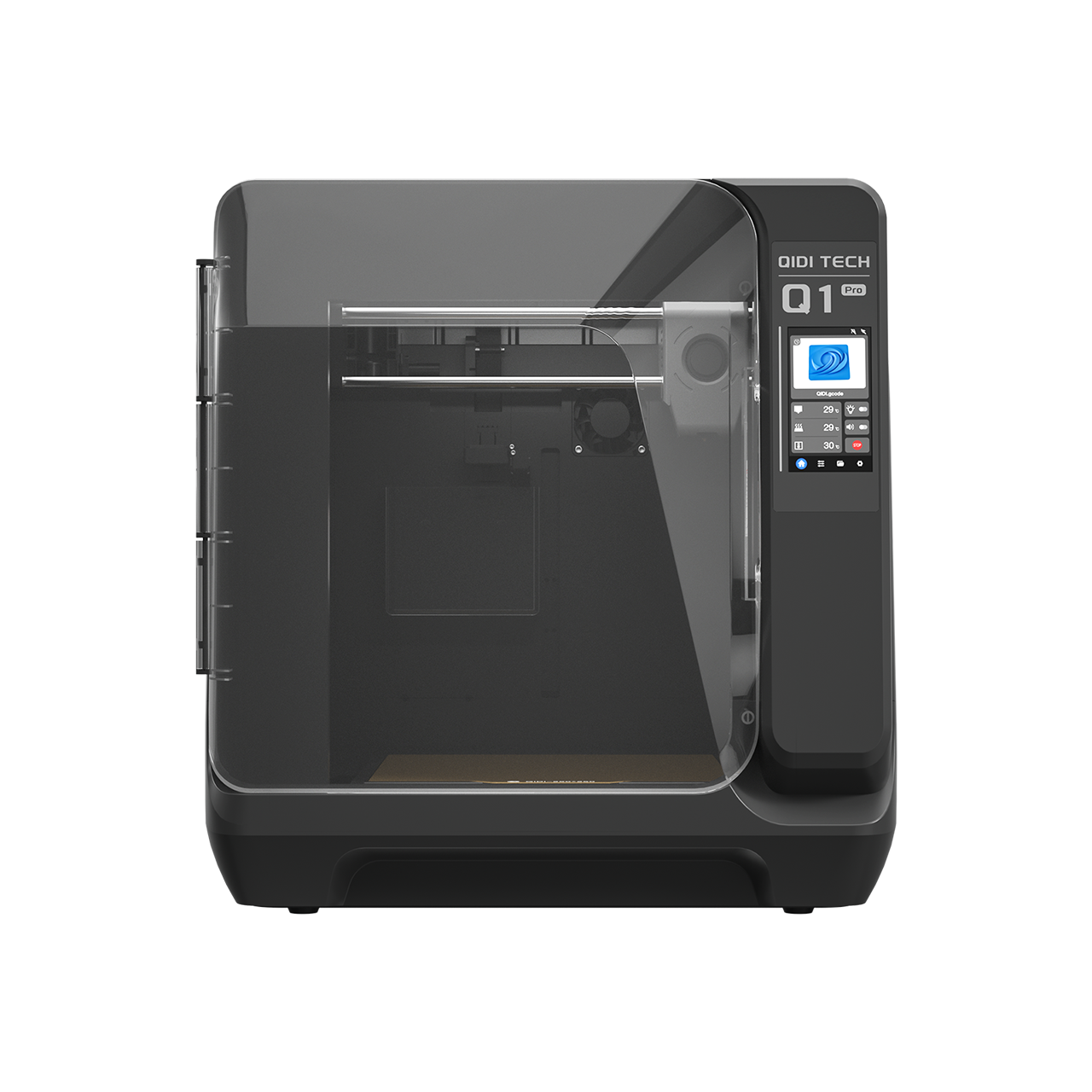 Q1 Pro
 X-Max 3


What Software Do I Need for 3D Printing?

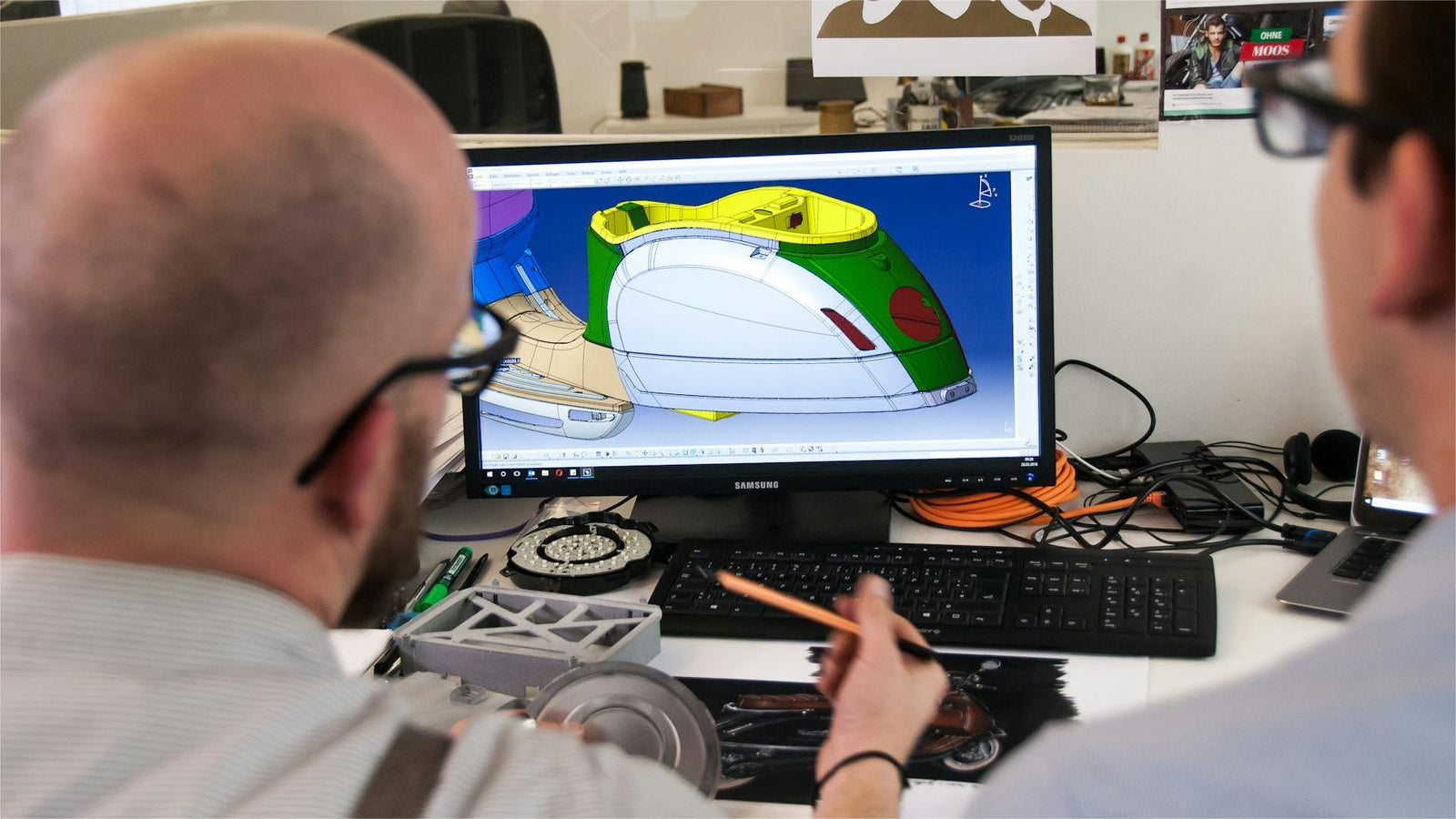
3D printing needs software at three stages: a modelling program to create the design, a slicer to convert it into printer instructions, and printer management software to send and monitor the job. Beginners can cover all three for free — Tinkercad or Blender to model, QIDI Studio or Cura to slice, and the printer's own app to run it.
3D printing opens up incredible possibilities, but getting started involves more than just the printer itself. The software you use is crucial — it's the bridge between your ideas and the final, physical object. From bringing your concepts to life digitally to preparing your design for printing, software plays a vital role at every stage. Whether you're a hobbyist or a professional, understanding the software landscape is key to unlocking your 3D printer's full potential.
The Three Kinds of Software, and What Each One Does
| Stage | Software type | What goes in | What comes out | Free examples |
|---|---|---|---|---|
| 1. Design | CAD or 3D modelling | An idea, a sketch, a measurement | A model file — STL, OBJ, 3MF or STEP | Tinkercad, Blender, FreeCAD, Onshape |
| 2. Prepare | Slicer | A model file | G-code for one specific printer | QIDI Studio, Cura, PrusaSlicer, OrcaSlicer |
| 3. Run | Printer management / firmware | G-code | A finished print, plus monitoring and control | The printer's own app, OctoPrint |
You do not always need all three. If you download models rather than design them, stage one disappears. If your printer has its own network interface, stage three is already handled. The one stage nobody skips is slicing — the file formats covered in our guide to 3D printing file formats only become printable after a slicer has processed them.
Design Software: Creating Your 3D Models
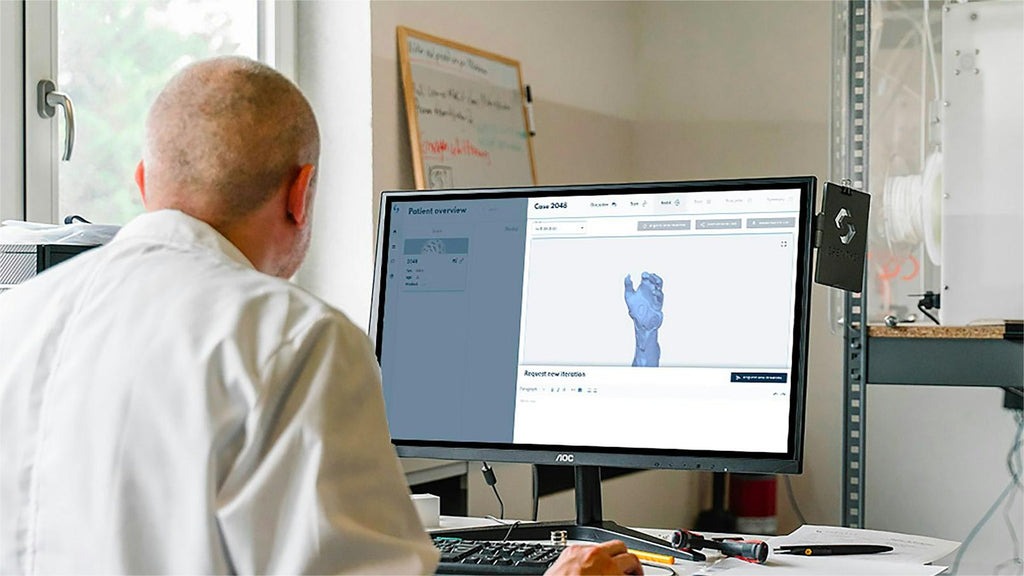
Before you can print a 3D object, you need to design it. Here are the main types of design software and some popular options to help you get started.
1. CAD Programs for Precise Technical Designs
Computer-Aided Design (CAD) software is essential for creating accurate 3D models, especially for mechanical parts or precise objects. If you're new to 3D design, try Tinkercad. It's free, web-based, and easy to use, making it perfect for simple designs and learning the basics.
For professional work, consider AutoCAD or SolidWorks. AutoCAD is the industry standard for 2D and 3D technical drawings, while SolidWorks is popular in engineering and product design. Both offer more advanced features but are paid software.
Between the two extremes sits FreeCAD, a free and open-source parametric modeller. Parametric means the design remembers its own dimensions: change a hole from 4 mm to 5 mm and everything that depends on it updates. For functional printed parts that get revised, that is worth more than any rendering feature.
2. 3D Modeling Software for Artistic Shapes
When you need more flexibility for creating complex, artistic designs, turn to 3D modeling software. Blender is a free, open-source option that's great for modeling, sculpting, and animation. It has a steeper learning curve but is very capable once mastered.
For digital sculpting, ZBrush is the go-to choice in game and film industries. It's a paid software but offers professional-grade tools for creating detailed, organic models.
3. Specialized Design Software for Specific Industries
Some industries require specialized 3D design tools. In dentistry, 3Shape is popular for designing crowns and bridges. Architects often use Revit, which combines 3D modeling with building information. For fashion designers, CLO3D offers 3D garment design with fabric simulation.
When choosing software, consider your skill level and specific needs. Most professional software offers free trials, so you can test before buying. Always check if the software can export files in formats compatible with your 3D printer, such as .STL or .OBJ.
4. The Best Free 3D Modeling Software, Compared
You can go from nothing to a printed part without paying for anything. These are the free options worth knowing, and what each is actually good at.
| Software | Modelling style | Cost | Best for | Where it runs |
|---|---|---|---|---|
| Tinkercad | Combining and subtracting solid shapes | Free | A first design, teaching, quick brackets and boxes | Browser |
| FreeCAD | Parametric CAD | Free, open source | Functional parts with dimensions you will want to change later | Windows, macOS, Linux |
| Blender | Mesh modelling and sculpting | Free, open source | Figures, organic shapes, artistic work | Windows, macOS, Linux |
| Onshape | Parametric CAD | Free tier keeps your documents public; paid plans for private work | CAD without installing anything, team collaboration | Browser |
| SketchUp Free | Direct push-pull modelling | Free web version; desktop versions paid | Furniture, architectural shapes, straight-edged objects | Browser |
| MeshLab | Mesh repair and conversion | Free, open source | Cleaning up scans and converting between mesh formats | Windows, macOS, Linux |
Pick by the shape you are making, not by the feature list. Anything mechanical with measurements belongs in a parametric CAD tool; anything organic belongs in a sculpting tool. Trying to model a figurine in FreeCAD, or a bracket in Blender, is the usual reason people conclude that 3D design is hard. Our round-ups of free modelling software and paid modelling software go deeper on each.
Slicing Software: Preparing Your Model for Printing
Once you've designed your 3D model, you need to prepare it for printing. This is where slicing software comes in.
1. Purpose of Slicing Software
A slicer converts your 3D model into a set of instructions that your 3D printer can understand. It "slices" your model into thin layers and generates a code (usually G-code) that tells your printer how to create each layer.
2. Key Features of Slicing Software
Good slicing software offers several important features:
- Layer height adjustment: This affects print quality and speed.
- Support structure generation: Creates temporary structures to support overhanging parts of your model.
- Infill density settings: Determines how solid the inside of your print will be.
- Print speed and temperature controls: Helps you fine-tune your print for different materials.
The terminology takes a while to settle — walls, perimeters, top and bottom layers, seams, bridging and retraction all mean something specific. Our glossary of essential slicer terms covers the vocabulary before you start changing values.

3. Popular Slicing Software Options
For beginners, Cura is an excellent free option. It's user-friendly and works with a wide range of 3D printers. It offers basic and advanced settings, allowing you to grow with the software as you gain experience.
PrusaSlicer is another free, open-source option, and it is the ancestor of most modern slicers that are not Cura. It works with many printers, not only Prusa machines. OrcaSlicer is the community favourite for calibration and high-speed tuning, and is also free.
For those seeking a paid workflow, Simplify3D offers detailed process control and preview features. It is the only widely used FDM slicer that costs money, and free slicers have closed most of the gap.
Many 3D printer manufacturers also provide their own slicing software, tailored to work best with their printers — which brings us to the question most QIDI owners actually arrive with. A full comparison of every option is in our guide to popular 3D printing slicing software.
What Software Do QIDI 3D Printers Use?
Every QIDI printer sold today uses QIDI Studio, which is free, open source under AGPL v3, and comes with tuned profiles for each machine. QIDI maintains two other slicers for older hardware, which is why a search for "QIDI software" turns up three different names.
| Software | Forked from | Covers | Cost |
|---|---|---|---|
| QIDI Studio | Bambu Studio | Every current QIDI machine, plus the previous Klipper generation | Free, AGPL v3 |
| QIDI Slicer | PrusaSlicer | The earlier Klipper-era machines, on firmware V4.0.0 or above | Free |
| QIDI Print | Cura | Legacy pre-Klipper models | Free |
Two things are worth knowing before you pick. QIDI Studio is the only one that manages the QIDI BOX multi-material unit, so multi-colour printing effectively requires it. And QIDI Studio is a sibling of OrcaSlicer, not a version of it — both were forked from Bambu Studio separately, and QIDI contributes its printer profiles to the OrcaSlicer project, so either will drive a QIDI printer. Downloads for all three are on the QIDI software and firmware page, and the full family tree is in our article on QIDI Studio and Orca Slicer.
Printer Management and Monitoring Software: Controlling Your 3D Printer
After slicing your model, you'll need software to manage and monitor your 3D printer. This software helps you control the printing process and keep an eye on your prints.
1. Printer Firmware: The Basics
Firmware is the software that runs on your 3D printer itself. It interprets the instructions from your slicing software and controls the printer's hardware. Most printers come with pre-installed firmware, but you may need to update it occasionally for improved features or bug fixes.
Popular firmware options include Marlin, Repetier and Klipper. All are open source. Klipper is the one behind current high-speed machines: it moves the motion planning onto a more powerful host processor, which is what makes input shaping and pressure advance practical. Every current QIDI printer runs a Klipper-based firmware. Your printer's manual should guide you on how to update the firmware if needed.
2. Remote Monitoring Software
Remote monitoring software allows you to control and watch your printer from a distance. This is especially useful for long prints or if your printer is in a different room.
OctoPrint is a popular, free option. It runs on a small computer connected to your printer. With OctoPrint, you can start prints, monitor progress with a webcam, and even stop prints if something goes wrong, all from your phone or computer.
Machines with a camera and network connection built in often make this unnecessary. Current QIDI printers include an on-board camera and can be monitored from QIDI Studio directly, which removes the extra hardware and the extra software from the equation.
3. Printer Networking Solutions
If you're running multiple printers, you might need networking software to manage them all efficiently. Repetier-Server is a good option for this. It allows you to control multiple printers from a single interface, queue print jobs, and monitor all your printers at once.
Many modern 3D printers also come with their own apps or cloud-based solutions for remote control and monitoring. Check your printer's documentation to see what's available for your specific model.
While these tools can be very helpful, they're not always necessary for basic 3D printing. Start with the software that came with your printer, and explore these additional options as you become more comfortable with the 3D printing process.
Additional Helpful Tools: Enhancing Your 3D Printing Workflow
Beyond the core software for design, slicing, and printer management, there are several additional tools that can improve your 3D printing experience.
1. 3D Scanning Software
3D scanning software allows you to create 3D models from real-world objects. This can be useful for replicating existing items or creating custom-fit parts.
Many smartphones now have 3D scanning capabilities built into their cameras, and app options change quickly, so check what is current for your device before buying anything. For more professional results, dedicated 3D scanners come with their own software. Scans arrive as meshes rather than CAD, which changes how you prepare them — our scan-to-print walkthrough covers that workflow end to end.
2. Repair and Analysis Tools
Sometimes, 3D models have small errors — holes in the mesh, flipped normals, self-intersecting surfaces — that stop a slicer from producing a sensible result. Repair and analysis tools fix these issues.
Meshmixer, a free Autodesk tool, is still widely used for repairing models, creating support structures and simple mesh editing, although Autodesk no longer actively develops it. MeshLab is an actively maintained open-source alternative for the same kind of work. For heavier industrial analysis and repair, Autodesk Netfabb is the commercial option — it is a separate product, also available bundled with Fusion 360, rather than a feature inside it.

3. File Format Converters
Different 3D modeling software may use different file formats. Converters help you change files from one format to another.
Online services like Tinkercad can import and re-export common 3D file formats for free. For more specialized conversions, MeshLab is a comprehensive open-source tool that handles a wide range of 3D file formats. Modern slicers do more of this than people expect — QIDI Studio reads STL, 3MF, STEP and G-code, so a CAD file often needs no conversion step at all.
How to Choose the Right 3D Software for Your Needs
With so many software options available, selecting the right ones for your 3D printing journey can seem overwhelming. Here's how to approach this decision and find the best fit for your needs.
1. Consider Your Skill Level and Project Requirements
Your experience level and project complexity should guide your software choice. Beginners might find advanced software overwhelming, potentially slowing down their learning process. Conversely, experienced users may find basic software limiting for complex projects. Match the software's capabilities to your current skills and the demands of your intended projects to ensure a smooth workflow.
2. Evaluate Long-Term Value
While free options are attractive, especially for beginners, consider the long-term value of paid software. Ask yourself: Will this software grow with me? Does it offer features that could enhance my productivity or capabilities in the future? Sometimes, investing in more comprehensive software early can save time and money as your skills advance.
3. Consider Integration and Workflow
Look for software that integrates well with your existing tools and workflow. Smooth integration between design, slicing, and printer management software can significantly improve your efficiency. Consider how different software options work together in your 3D printing process.
4. Assess Update Frequency and Developer Support
Choose software that is regularly updated and well-supported by its developers. This ensures you'll have access to the latest features, bug fixes, and compatibility with new hardware. Active developer support also means you're more likely to find solutions if you encounter issues.
5. Explore Learning Resources
The availability of tutorials, documentation, and community support can greatly impact your learning curve. Software with extensive learning resources can help you master new skills more quickly and troubleshoot problems effectively.
Your ideal software toolkit may evolve as you gain experience and take on more complex projects. Be open to exploring new options as your needs change, and don't hesitate to experiment with different software to find the best fit for your 3D printing journey.
FAQ
What software do I need for 3D printing?
At minimum, a slicer. If you design your own models you also need modelling software, and if your printer has no network interface you may want printer management software as well. A complete free stack — Tinkercad or Blender, plus QIDI Studio or Cura — costs nothing.
What is the best free 3D modeling software for 3D printing?
Tinkercad for a first design, FreeCAD for functional parts with dimensions you will revise, and Blender for organic or artistic shapes. All three are free; the right one depends on whether your object is measured or sculpted.
Do I need CAD software to use a 3D printer?
No. Thousands of ready-made models are available to download, and a slicer alone will print them. CAD becomes necessary only when you want to design or modify a part yourself — and even then, a slicer can handle simple changes such as cutting a model or adding a hole.
What software do QIDI 3D printers use?
QIDI Studio, which is free and open source, is the slicer for every current QIDI machine. QIDI Slicer and QIDI Print are older free slicers QIDI maintains for earlier hardware generations. All three are available from QIDI's software and firmware page.
Is 3D printing software free?
Most of it is. Every slicer people actually recommend — QIDI Studio, Cura, PrusaSlicer, OrcaSlicer, Bambu Studio — is free, and several are open source. Free modelling software goes all the way up to Blender and FreeCAD. Paid tools such as AutoCAD, SolidWorks, ZBrush and Simplify3D solve professional problems, not beginner ones.
Can I use any slicer with any 3D printer?
Usually, if the slicer has a profile for your machine or you are willing to build one. But a manufacturer's own slicer ships with the correct build volume, machine limits, start G-code and material presets already set — which removes the most common source of first-print failures.
Build Your 3D Printing Software Toolkit
3D printing software is the key to turning your ideas into reality. From design tools to slicers and printer management apps, each piece of software plays a crucial role in the printing process. As a beginner, start with user-friendly, free options like Tinkercad for design and your printer's own slicer for preparation. As you grow more experienced, explore advanced tools that match your evolving needs. Remember to check compatibility with your printer, take advantage of free trials, and tap into community resources for support. With the right software toolkit — and the right filament in the machine — you'll be well-equipped to tackle a wide range of 3D printing projects.
Read More
- The Three Kinds of Software, and What Each One Does
- Design Software: Creating Your 3D Models
- 1. CAD Programs for Precise Technical Designs
- 2. 3D Modeling Software for Artistic Shapes
- 3. Specialized Design Software for Specific Industries
- 4. The Best Free 3D Modeling Software, Compared
- Slicing Software: Preparing Your Model for Printing
- 1. Purpose of Slicing Software
- 2. Key Features of Slicing Software
- 3. Popular Slicing Software Options
- What Software Do QIDI 3D Printers Use?
- Printer Management and Monitoring Software: Controlling Your 3D Printer
- 1. Printer Firmware: The Basics
- 2. Remote Monitoring Software
- 3. Printer Networking Solutions
- Additional Helpful Tools: Enhancing Your 3D Printing Workflow
- 1. 3D Scanning Software
- 2. Repair and Analysis Tools
- 3. File Format Converters
- How to Choose the Right 3D Software for Your Needs
- 1. Consider Your Skill Level and Project Requirements
- 2. Evaluate Long-Term Value
- 3. Consider Integration and Workflow
- 4. Assess Update Frequency and Developer Support
- 5. Explore Learning Resources
- FAQ
- What software do I need for 3D printing?
- What is the best free 3D modeling software for 3D printing?
- Do I need CAD software to use a 3D printer?
- What software do QIDI 3D printers use?
- Is 3D printing software free?
- Can I use any slicer with any 3D printer?
- Build Your 3D Printing Software Toolkit
- Read More
Recommended products