
 Q2
Q2
 QIDI Box
 Plus 4
 Q1 Pro
 X-Max 3


Best Free 3D Modeling Software for 3D Printing: A Beginner-Friendly Guide


The best free 3D modelling software for 3D printing depends on what you are making. Tinkercad is the easiest starting point, Blender is the strongest free sculpting tool, and FreeCAD is the best free option for accurate mechanical parts. All three are genuinely free with no trial timer, and all three export STL files that any slicer can read.
The catch is that "free" covers at least four different arrangements, and the terms have moved over the past few years. This guide separates permanently free open-source software from free-for-personal-use licences and free web tiers, and states the licence for each tool so you can check it against your own project before you invest weeks learning an interface.
Choosing the right 3D modeling software can make 3D printing much easier, especially if you are just getting started. Some tools are designed for simple shape-based modeling, while others are better for mechanical parts, artistic sculpting, parametric design, or repairing downloaded STL files.
The important thing to know is that “free” does not always mean the same thing. Some programs are fully open source, some are free only for personal use, some are free web-based tools, and some professional programs only offer a limited-time trial. This guide focuses mainly on software that is genuinely free to use or has a long-term free plan suitable for beginners, hobbyists, students, and personal 3D printing projects.
How to Choose Free 3D Modeling Software for 3D Printing
Before downloading any software, think about what kind of model you want to create. A tool that works well for a decorative character may not be the best choice for a replacement bracket, enclosure, hinge, or functional part.
For 3D printing, good modeling software should help you create models that are accurate, printable, and easy to export. Here are the main factors to consider.
Ease of Use
If you are new to 3D modeling, start with a simple tool that uses basic shapes, drag-and-drop controls, and a clean interface. Advanced software may offer more control, but it often comes with a steeper learning curve.
Model Type
Different software is better for different tasks. Shape-based modeling is good for beginners. Parametric CAD is better for mechanical parts. Sculpting tools are better for organic shapes, miniatures, and decorative models.
File Export Options
For 3D printing, the most common model formats are STL, OBJ, and 3MF. STL is widely supported, but it stores only basic mesh geometry. 3MF can store more information, such as color, materials, and project data, depending on the slicer and workflow.
Printability Checks
A 3D model should usually be watertight, properly scaled, and free of major mesh errors. Non-manifold edges, holes, inverted normals, and very thin walls can cause slicing or printing problems. Some software includes tools or add-ons that help detect these issues before slicing.
Free Use Limitations
Always check whether the software is free for personal use, education, commercial use, or only for a limited trial period. This matters if you plan to sell printed models, use designs for a business, or create client work.
Quick Comparison of Free 3D Modeling Software
|
Software |
Best For |
Free Type |
Beginner Friendly |
Good for 3D Printing? |
|
Tinkercad |
Absolute beginners, simple models |
Free web app |
Very easy |
Yes, for simple prints |
|
Blender |
Organic models, sculpting, artistic design |
Free and open source |
Medium to hard |
Yes, with proper setup |
|
FreeCAD |
Mechanical parts, functional prints |
Free and open source |
Medium |
Yes, especially for CAD-style parts |
|
OpenSCAD |
Code-based technical models |
Free software |
Medium to hard |
Yes, for precise parametric designs |
|
SketchUp Free |
Simple architectural and layout models |
Free web-based plan, non-commercial |
Easy to medium |
Yes, with care |
|
Wings 3D |
Polygon modeling and simple organic shapes |
Free and open source |
Medium |
Yes, for mesh-based models |
|
SolveSpace |
Simple parametric parts and assemblies |
Free GPLv3 software |
Medium |
Yes, for functional parts |
|
MeshLab |
Mesh repair, cleaning, scanning workflows |
Open source |
Medium |
Useful for fixing models |
|
Autodesk Fusion for Personal Use |
Hobby CAD and product-style models |
Free for eligible non-commercial personal use |
Medium |
Yes, with limitations |
|
Onshape Free |
Browser-based CAD, hobby projects |
Free for non-commercial public documents |
Medium |
Yes, for CAD workflows |
Is it still free? Licence and maintenance status
Licensing terms change, and several of the tools on every "best free CAD" list are not free in the way people assume. Open-source licences are the stable ones — a GPL, LGPL or BSD tool cannot be taken away from you retroactively. Vendor free tiers are the volatile ones: eligibility rules, storage caps and privacy terms have all shifted over the last few years. The table below states what each tool actually is.
| Software | Type of "free" | Licence | Runs where | Commercial use on the free tier |
|---|---|---|---|---|
| Tinkercad | Free web service (Autodesk) | Proprietary, no cost | Browser | Governed by Autodesk's terms of service |
| Blender | Free and open source | GNU GPL | Windows, macOS, Linux | Yes |
| FreeCAD | Free and open source | LGPL | Windows, macOS, Linux | Yes |
| OpenSCAD | Free and open source | GNU GPL | Windows, macOS, Linux | Yes |
| SketchUp Free | Free web tier | Proprietary | Browser only | No — personal, non-commercial use |
| Wings 3D | Free and open source | BSD | Windows, macOS, Linux | Yes |
| SolveSpace | Free and open source | GNU GPL v3 | Windows, macOS, Linux | Yes |
| MeshLab | Free and open source | GNU GPL v3 | Windows, macOS, Linux | Yes |
| Autodesk Fusion (Personal Use) | Free tier with eligibility rules | Proprietary | Windows, macOS | No — non-commercial, below Autodesk's stated hobbyist revenue threshold, renewable term |
| Onshape Free | Free plan | Proprietary | Browser | No — non-commercial, and documents are public |
Three of these deserve a closer look before you commit.
Autodesk Fusion for Personal Use
Fusion's free personal tier is a renewable licence, not a permanent grant. Autodesk sets an eligibility bar — non-commercial personal projects and home-based fabrication, under a stated annual revenue threshold — and the licence runs for a fixed term that you renew from inside the application when it approaches expiry. Some capabilities present in the paid product are limited on the personal tier. Check the current terms before you build a business workflow on it.
Onshape Free
Everything you model on the Onshape Free plan is publicly visible. Onshape offers the free plan to hobbyists and makers for non-commercial use, and the trade-off is that free documents are public and accessible to anyone. That is fine for a keychain and unacceptable for a client part or anything under NDA. Onshape publishes the plan boundaries on its pricing page.
SketchUp Free
SketchUp Free is browser-only and non-commercial. It has no desktop application, no extension ecosystem, and does not import DWG or OBJ. Trimble documents what the free web tier does and does not include in the SketchUp Free help article. If you need plugins or offline work, the free tier is not the version people are describing when they recommend SketchUp.
1. Tinkercad
Tinkercad is a free browser-based 3D design tool from Autodesk aimed at beginners, students and classrooms. There is no download, no trial timer and no paid tier — you sign in at tinkercad.com and start building.
Tinkercad is one of the easiest free 3D modeling tools for beginners. It runs in a web browser, so there is no complex installation process. Users can create models by combining simple shapes such as boxes, cylinders, holes, text, and basic geometric forms.
This makes it a strong choice for students, children, educators, hobbyists, and anyone who wants to understand the basics of 3D design before moving into more advanced software. Tinkercad is especially useful for simple objects such as name tags, keychains, small organizers, basic enclosures, toys, classroom models, and beginner-friendly prototypes.
The main limitation is that Tinkercad is not designed for highly complex surfaces, advanced mechanical assemblies, or detailed organic sculpting. It is best seen as an entry-level design tool rather than a professional CAD platform.
Best for: beginners, students, classroom projects, simple household objects, basic 3D printing designs.
Pros:
- Very easy to learn
- Runs in the browser
- No advanced CAD knowledge required
- Good for simple STL models
- Ideal for learning basic 3D design concepts
Cons:
- Limited advanced modeling features
- Not ideal for complex mechanical parts
- Not suitable for detailed sculpting
- Browser-based workflow may feel restrictive for advanced users
2. Blender
Blender is a free and open-source 3D creation suite released under the GNU GPL, and it is the strongest free option for sculpted and organic 3D printable models. It supports modeling, sculpting, animation, rendering, simulation, and many other creative workflows. For 3D printing, Blender is especially useful for organic models, characters, decorative objects, miniatures, artistic designs, and mesh editing. Downloads and the licence text are published by the Blender Foundation.
Blender is a powerful free and open-source 3D creation suite. It supports modeling, sculpting, animation, rendering, simulation, and many other creative workflows. For 3D printing, Blender is especially useful for organic models, characters, decorative objects, miniatures, artistic designs, and mesh editing.
Unlike traditional CAD tools, Blender is mesh-based. This gives users a lot of creative freedom, but it also means that models need to be prepared carefully for 3D printing. A visually attractive Blender model is not always automatically printable. It should still be checked for wall thickness, scale, non-manifold geometry, and surface errors.
Blender includes tools and add-ons that can help prepare models for printing. Its 3D Print Toolbox, for example, can analyze mesh issues that may cause slicing failures — it is distributed as an add-on through the Blender extensions platform.
Blender has a steeper learning curve than Tinkercad or SketchUp Free, but it also offers far more flexibility. For users who want to design custom figures, props, terrain, decorative pieces, or artistic models, Blender is one of the strongest free options available.
Best for: sculpting, organic shapes, miniatures, props, artistic models, decorative 3D prints.
Pros:
- Completely free and open source
- Excellent for organic and artistic modeling
- Strong sculpting and mesh editing tools
- Large learning community
- Useful for repairing and modifying mesh models
Cons:
- Steeper learning curve
- Less intuitive for precise mechanical CAD
- Requires printability checks before slicing
- Can be overwhelming for complete beginners

3. FreeCAD
FreeCAD is a free and open-source parametric CAD modeller under the LGPL, and it is the best free choice for dimensionally accurate functional parts. Development happens in the open and releases are published on the FreeCAD project site and its GitHub repository, so you can verify the current version and licence yourself at any time.
FreeCAD is a free and open-source parametric 3D modeler designed mainly for real-world objects. It is especially useful for mechanical parts, functional prints, enclosures, brackets, adapters, fixtures, and objects that require accurate dimensions.
Parametric modeling means you can define dimensions, constraints, and relationships in your design. If you need to change a hole diameter, wall thickness, length, or angle later, you can often adjust the parameter instead of rebuilding the whole model.
This makes FreeCAD a strong choice for 3D printing users who care about accuracy and repeatable design changes. It is not as beginner-friendly as Tinkercad, but it is much better suited for functional parts.
FreeCAD is also a good option for users who want an open-source CAD workflow and do not want to rely on commercial software subscriptions.
Best for: functional parts, mechanical designs, brackets, enclosures, adapters, dimensionally accurate objects.
Pros:
- Free and open source
- Strong parametric modeling workflow
- Good for real-world mechanical parts
- Suitable for dimension-based design
- Active open-source community
Cons:
- Interface can feel less polished than commercial CAD tools
- Learning curve is moderate
- Not ideal for organic sculpting
- Some workflows may feel complex for beginners
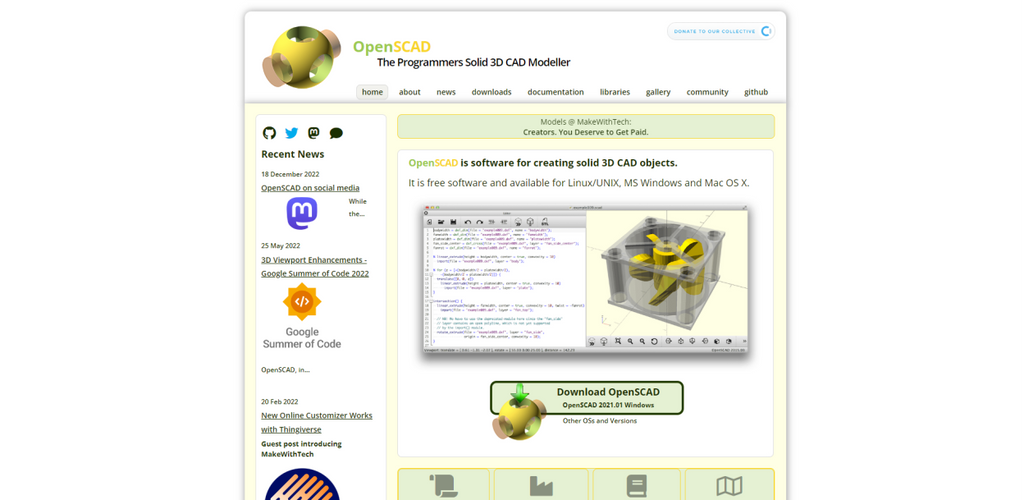
4. OpenSCAD
OpenSCAD is free, GPL-licensed software that builds solid 3D models from code rather than from mouse gestures. Stable releases arrive infrequently, but development snapshots are published continuously, and the project has an active public repository.
OpenSCAD is a free software tool for creating solid 3D CAD objects. Unlike most modeling software, it does not focus on direct mouse-based modeling. Instead, users create models by writing code.
This may sound intimidating at first, but it can be extremely powerful for technical and repeatable designs. For example, if you want to create a box, gear, spacer, bracket, or part with adjustable dimensions, OpenSCAD allows you to define those measurements in code and change them quickly.
OpenSCAD is especially useful for users who enjoy programming, mathematics, engineering, or procedural design. It is less suitable for artistic models or sculpted characters.
For 3D printing, OpenSCAD works well when the design needs to be precise, customizable, and easy to reproduce. Many open-source hardware projects use this type of workflow because parameters can be changed without manually remodeling the part.
Best for: code-based modeling, customizable parts, technical models, open-source hardware projects.
Pros:
- Free software
- Excellent for parametric and repeatable designs
- Good for technical parts
- Precise and scriptable
- Useful for customizable 3D printed objects
Cons:
- Not visual or beginner-friendly at first
- Requires comfort with code
- Not suitable for organic sculpting
- Limited direct modeling workflow
5. SketchUp Free
SketchUp Free is a browser-based version of SketchUp that allows users to create 3D models without installing desktop software. It is relatively easy to learn and is especially popular for architectural concepts, room layouts, furniture-like forms, and simple geometric models.
For 3D printing, SketchUp Free can be useful for simple models, but users need to be careful. Models created for visual design are not always automatically suitable for printing. Thin faces, internal geometry, reversed faces, and open surfaces can cause issues during slicing.
Another important point is usage rights. SketchUp Free is generally intended for non-commercial use, so users should check the current terms before using it for business or client work.
SketchUp Free is a good choice if you want an accessible tool for simple 3D concepts, especially architectural or object-based designs. However, for precise engineering parts, FreeCAD, SolveSpace, or Fusion for Personal Use may be better options.
Best for: simple geometric models, architectural concepts, furniture-style objects, layout models.
Pros:
- Easy to start using
- Runs in the browser
- Good for simple shapes and spatial design
- Friendly interface
- Useful for visualizing objects quickly
Cons:
- Free version is generally not for commercial use
- Not ideal for complex mechanical parts
- Printability issues may require cleanup
- Limited compared with paid SketchUp versions

6. Wings 3D
Wings 3D is a free and open-source subdivision modeller released under the BSD licence. It is worth stating plainly because Wings 3D turns up on "paid software" lists surprisingly often: it has always been free, and it is still maintained in the open on a public repository.
Wings 3D is a free and open-source subdivision modeler. It is useful for polygon modeling, simple organic shapes, low-poly objects, and mesh-based design.
While it does not include the same broad toolset as Blender, its simpler focus can make it easier for some users to learn polygon modeling.
For 3D printing, Wings 3D can be helpful when creating decorative objects, stylized forms, low-poly models, or simple mesh designs. However, users may still need another tool to check or repair printability issues before slicing.
Wings 3D is not the best choice for dimensionally precise engineering parts. It is better for users who want a lightweight mesh modeling tool without the complexity of a full 3D production suite.
Best for: polygon modeling, low-poly models, simple organic shapes, decorative designs.
Pros:
- Free and open source
- Good for polygon modeling
- Simpler than Blender
- Lightweight compared with larger 3D suites
- Suitable for decorative and low-poly models
Cons:
- Not parametric CAD
- Not ideal for mechanical parts
- Fewer advanced tools than Blender
- May require separate mesh repair tools
7. SolveSpace
SolveSpace is a free, GPLv3-licensed parametric CAD tool for 2D and 3D constraint-based design. Releases are published on its GitHub repository and the project site.
SolveSpace is a free parametric 2D and 3D CAD tool. It can be used for 3D part modeling, 2D drawing, 3D-printed parts, and simple mechanism design.
Compared with FreeCAD, SolveSpace is lighter and simpler. It supports constraint-based design, which means users can define relationships such as distances, angles, parallel lines, and equal lengths. This makes it useful for small mechanical parts and simple assemblies.
For 3D printing users, SolveSpace can be a practical choice when creating functional parts that need clean dimensions but do not require a large CAD environment. It is especially useful for small brackets, plates, spacers, and basic mechanical concepts.
Its interface may feel unusual to users coming from modern commercial CAD tools, but it is efficient once you understand the constraint-based workflow.
Best for: simple mechanical parts, constraint-based CAD, lightweight parametric modeling.
Pros:
- Free software
- Good for simple parametric parts
- Lightweight and fast
- Useful for mechanical concepts
- Supports constraint-based design
Cons:
- Less polished than some modern CAD tools
- Not ideal for complex sculpting
- Smaller ecosystem than FreeCAD or Blender
- Learning curve depends on CAD experience
8. MeshLab
MeshLab is free, GPLv3-licensed software for processing and repairing triangular meshes, not for designing models from scratch. It is developed by the Visual Computing Lab of ISTI-CNR and released through the MeshLab project site. If you are cleaning up downloaded STL files or 3D scans, this is the tool that belongs beside your modeller.
MeshLab is not primarily a modeling tool for creating objects from scratch. Instead, it is an open-source system for processing and editing 3D triangular meshes. It provides tools for cleaning, healing, inspecting, rendering, texturing, converting meshes, and preparing models for 3D printing.
This makes MeshLab especially useful when working with downloaded STL files, 3D scans, or models exported from other software. If a file has too many polygons, messy geometry, holes, or scanning artifacts, MeshLab may help clean and prepare it.
For beginners, MeshLab can feel technical. It is not the first tool most users should learn if they want to design models from scratch. However, it is valuable as a support tool in a 3D printing workflow.
Best for: mesh cleanup, 3D scan processing, repairing and preparing existing models.
Pros:
- Open source
- Good for cleaning and repairing meshes
- Useful for scan-based workflows
- Helps prepare models for 3D printing
- Supports mesh conversion and inspection
Cons:
- Not ideal for creating models from scratch
- Interface can feel technical
- Less beginner-friendly
- Best used alongside other modeling software
9. Autodesk Fusion for Personal Use
Autodesk Fusion is a professional CAD/CAM tool, but it also offers a free Personal Use version for eligible users. This version is generally intended for personal, non-commercial projects and comes with certain feature and eligibility limitations.
For 3D printing, Fusion is useful for product-style designs, functional parts, enclosures, assemblies, and mechanical prototypes. It is more advanced than beginner tools like Tinkercad but more structured for engineering work than Blender.
The main thing to understand is that Fusion for Personal Use is not the same as a fully unrestricted free commercial license. It has eligibility rules and feature limitations. Users should check the current terms before relying on it for long-term or business-related work.
Best for: hobby CAD, product-style parts, mechanical prototypes, personal non-commercial projects.
Pros:
- Professional-style CAD workflow
- Good for functional 3D printed parts
- Useful for assemblies and precise modeling
- Strong learning resources
- Suitable for users ready to move beyond beginner tools
Cons:
- Free version has eligibility restrictions
- Personal use only
- More complex than beginner tools
- Terms and features may change over time
10. Onshape Free
Onshape is a cloud-based CAD platform that runs in a browser. Its Free plan is designed for hobbyists and learners, but it is generally limited to non-commercial use and public document storage.
This makes it useful for learning CAD, creating personal projects, and experimenting with browser-based parametric modeling. Because documents are public on the free plan, it may not be suitable for private, confidential, or commercial projects.
For 3D printing, Onshape Free can be a strong option for users who want CAD-style modeling without installing software. It is particularly useful for mechanical parts, product-style designs, and collaborative learning.
Best for: browser-based CAD, learning parametric modeling, non-commercial hobby projects.
Pros:
- Runs in the browser
- Good CAD workflow
- Useful for mechanical parts
- No desktop installation required
- Suitable for learning parametric modeling
Cons:
- Free plan is generally non-commercial only
- Free documents may be public
- Requires internet access
- Not ideal for private commercial work
From finished model to printed part: what happens next
Modelling software creates the shape; slicing software turns that shape into printer instructions. They are two different programs and you need both. Once you export from any tool on this list, the file goes into a slicer, which converts the geometry into layers and G-code for a specific machine.
Which export format you choose matters more than most beginners expect.
| Format | What it stores | Use it when |
|---|---|---|
| STL | Triangle mesh geometry only | Single-colour parts; maximum compatibility |
| 3MF | Geometry plus colour, materials and project data | Multi-colour models, or anything with per-object settings |
| OBJ | Geometry plus colour and texture data | Moving sculpted or textured models between mesh tools |
| STEP | Precise CAD solids and assemblies, no mesh conversion | CAD-to-slicer workflows in software that reads STEP directly |
If you are printing in more than one colour, exporting as STL loses the colour assignments — that information can only travel in a format that carries project data. We cover the differences in detail in 3D printing file formats explained, and the slicer side in how to choose 3D slicer software for FDM printing.
On the hardware side, most QIDI printers ship with QIDI Studio, which reads STL, 3MF and STEP directly, so a CAD assembly can go from FreeCAD or Fusion to the build plate without a mesh conversion step. The current lineup runs from the Q2C and Q2 through the Plus 4 to the large-format Max4 — see the full 3D printer range if you are still choosing a machine to design for.
Free Software vs Free Trials: What Is the Difference?
When searching for free 3D modeling software, it is easy to confuse truly free tools with professional software that only offers a trial.
A truly free or open-source tool can usually be used long term without paying. Examples include Blender, FreeCAD, OpenSCAD, Wings 3D, SolveSpace, and MeshLab. Some tools, such as Tinkercad, are free web apps. Others, such as Fusion for Personal Use or Onshape Free, are free only under specific non-commercial conditions.
Free trials are different. A free trial gives temporary access to paid software. Professional tools such as Maya, AutoCAD, Cinema 4D, Rhino, and ZBrush may offer trial access or education plans, but they should not be treated as free long-term modeling software for general users.
For a beginner or hobbyist, it is usually better to start with genuinely free software first. Once you understand your workflow and project needs, you can decide whether a paid tool is worth considering.
Which Free 3D Modeling Software Should You Choose?
The best software depends on your project type and experience level.
If you are completely new to 3D modeling, start with Tinkercad. It is simple, browser-based, and easy to understand.
If you want to design mechanical or functional parts, try FreeCAD, SolveSpace, Autodesk Fusion for Personal Use, or Onshape Free. These tools are better for dimension-based modeling and real-world objects.
If you want to create artistic models, characters, props, terrain, or miniatures, Blender is one of the best free choices. It has a steeper learning curve, but it offers far more creative control.
If you like code-based design, OpenSCAD is a strong option. It is especially useful for customizable technical models.
If you need to repair, clean, inspect, or simplify existing mesh files, MeshLab is worth learning as a support tool.
If you want a simple polygon modeler, Wings 3D can be a good lightweight alternative to Blender.
When is it worth paying for modelling software?
Upgrade when a licence restriction blocks you, not when you run out of features. Most hobbyist 3D printing never exhausts what Blender, FreeCAD and OpenSCAD can do. What does force the decision is usually one of four things:
- Commercial work. SketchUp Free, Onshape Free and Fusion Personal all restrict commercial use. Selling prints or doing client work means paying for a tier that permits it — or moving to an open-source tool that has no such clause.
- Privacy. Onshape Free makes your documents public. Confidential geometry needs a paid plan.
- Interoperability with a client or employer. If the files you receive are native SolidWorks, Creo or CATIA, opening them faithfully generally means running the same software.
- Simulation, CAM, PDM and certification. Load analysis, toolpath generation and managed revision control are where commercial packages are genuinely ahead.
If any of those apply to you, our companion guide to paid 3D modelling software covers what each professional package is actually for and where the upgrade is worth the money.
Common 3D Printing Modeling Mistakes to Avoid
Even good software cannot guarantee a successful print if the model is poorly prepared. Here are common mistakes to watch for.
Ignoring Wall Thickness
Very thin walls may look fine on screen but fail during printing. Always check whether your model has enough thickness for the printer, material, and nozzle size you plan to use.
Forgetting Scale
Some software may export models in different units. Before slicing, check whether the model size is correct. A part designed in inches may appear much larger or smaller if imported as millimeters.
Creating Non-Manifold Geometry
A printable model should usually be watertight, meaning the surface is closed without holes or open edges. Non-manifold geometry can confuse slicers and cause missing surfaces or failed toolpaths.
Using Too Many Polygons
Highly detailed models can create very large STL files. Large files may slow down slicing without improving print quality. Mesh reduction tools can help when a model is unnecessarily heavy.
Not Checking Overhangs
Some shapes require support material. If you want easier printing, design with overhang angles, bridges, and print orientation in mind.
FAQs About Free 3D Modeling Software for 3D Printing
Q1. What is the easiest free 3D modeling software for beginners?
Tinkercad is usually one of the easiest options for complete beginners. It uses simple shapes and runs in a browser, making it a good starting point for basic 3D printing projects.
Q2. Is Blender good for 3D printing?
Yes, Blender can be used for 3D printing, especially for artistic, organic, and sculpted models. However, users should check scale, wall thickness, and mesh errors before slicing. Blender also has tools and add-ons that can help identify mesh problems before printing.
Q3. What free software is best for mechanical parts?
FreeCAD, SolveSpace, Fusion for Personal Use, and Onshape Free are better suited for mechanical and functional parts than purely artistic modeling tools. FreeCAD and SolveSpace are strong options for users who prefer free or open-source CAD workflows.
Q4. Is SketchUp Free good for 3D printing?
SketchUp Free can be used for simple 3D printing models, especially geometric or architectural forms. However, users should check that the model is solid, correctly scaled, and free of open surfaces before slicing. Users should also review the current terms before using it for commercial projects.
Q5. What is the best free software for sculpting 3D printable models?
Blender is one of the strongest free options for sculpting 3D printable models. It is suitable for characters, miniatures, props, and organic shapes, though it requires more learning than beginner tools.
Q6. Is Blender really free, or is there a paid version?
Blender is free in every sense. It is released under the GNU GPL by the Blender Foundation, there is no paid tier, no feature-limited edition and no commercial-use restriction. You can use it to design products you sell.
Q7. Is FreeCAD free for commercial use?
Yes. FreeCAD is open source under the LGPL, with no restriction on commercial use. That makes it one of the few genuinely free options for someone selling 3D printed parts, alongside Blender, OpenSCAD, SolveSpace, Wings 3D and MeshLab.
Q8. What free software can repair a broken STL file?
MeshLab is the standard free answer for cleaning, healing and inspecting meshes, and it handles 3D scan artefacts well. Blender's 3D Print Toolbox add-on also flags non-manifold edges, thin walls and other issues that break slicing. Neither is a modelling tool first — they are repair tools you keep alongside your modeller.
Q9. Can I use free modelling software for multi-colour 3D printing?
Yes, but the colour is usually assigned in the slicer rather than in the modeller. You design the geometry in any free tool, export it, then paint or map colours in the slicer before printing. Our multi-colour printing tutorial walks through that half of the workflow.
Q10. Which free CAD software has no commercial-use restriction?
FreeCAD, OpenSCAD, SolveSpace, Blender, Wings 3D and MeshLab are all open source with no commercial restriction. Tinkercad is free but governed by Autodesk's terms of service; SketchUp Free, Onshape Free and Fusion for Personal Use are all explicitly non-commercial on their free tiers.
Start With the Free 3D Modeling Tool That Fits Your Project
There is no single best free 3D modeling software for every user. For simple beginner projects, Tinkercad is a practical starting point. For functional parts, FreeCAD, SolveSpace, Fusion for Personal Use, and Onshape Free offer stronger CAD workflows. For artistic models, Blender gives more creative control, while OpenSCAD works well for code-based parametric designs. Start with the tool that matches your current project, learn the basics, and expand your workflow as your 3D printing skills grow. When a licence rather than a feature becomes the thing holding you back, that is the moment to look at paid modelling software — and if the software side is already sorted, popular slicing software compared is the logical next read.
- How to Choose Free 3D Modeling Software for 3D Printing
- Ease of Use
- Model Type
- File Export Options
- Printability Checks
- Free Use Limitations
- Quick Comparison of Free 3D Modeling Software
- Is it still free? Licence and maintenance status
- Autodesk Fusion for Personal Use
- Onshape Free
- SketchUp Free
- 1. Tinkercad
- 2. Blender
- 3. FreeCAD
- 4. OpenSCAD
- 5. SketchUp Free
- 6. Wings 3D
- 7. SolveSpace
- 8. MeshLab
- 9. Autodesk Fusion for Personal Use
- 10. Onshape Free
- From finished model to printed part: what happens next
- Free Software vs Free Trials: What Is the Difference?
- Which Free 3D Modeling Software Should You Choose?
- When is it worth paying for modelling software?
- Common 3D Printing Modeling Mistakes to Avoid
- Ignoring Wall Thickness
- Forgetting Scale
- Creating Non-Manifold Geometry
- Using Too Many Polygons
- Not Checking Overhangs
- FAQs About Free 3D Modeling Software for 3D Printing
- Q1. What is the easiest free 3D modeling software for beginners?
- Q2. Is Blender good for 3D printing?
- Q3. What free software is best for mechanical parts?
- Q4. Is SketchUp Free good for 3D printing?
- Q5. What is the best free software for sculpting 3D printable models?
- Q6. Is Blender really free, or is there a paid version?
- Q7. Is FreeCAD free for commercial use?
- Q8. What free software can repair a broken STL file?
- Q9. Can I use free modelling software for multi-colour 3D printing?
- Q10. Which free CAD software has no commercial-use restriction?
- Start With the Free 3D Modeling Tool That Fits Your Project
Recommended products