
 Q2
Q2
 QIDI Box
 Plus 4
 Q1 Pro
 X-Max 3


Is Your 3D Printer Noisy? Find Out Why and How to Fix It

Yes, 3D printers make noise, but not the kind that damages hearing. A desktop FDM machine produces a mix of stepper motor whine, cooling fan rush and low-frequency vibration passed into whatever it stands on. The problem is that it is tonal, intrusive and runs for hours — which is why the effective fixes are isolation, fan choice and firmware, not earplugs.
3D printing has changed the way we create objects, making it possible to quickly produce complex designs and custom parts. However, a common problem that many 3D printer owners face is noise. From the whirring sound of stepper motors to the humming of cooling fans and the vibrations of the printer itself, noise can be a big distraction and even a source of frustration. This blog post will present the main causes of noise in 3D printers and share practical solutions to help you reduce it. By following these tips, you can enjoy a more pleasant and productive 3D printing experience with less noise.
Is a 3D Printer Loud? Putting the Number in Context
Loudness is measured in decibels, and for anything involving human hearing the relevant unit is the A-weighted decibel (dBA), which discounts frequencies the ear is less sensitive to. Two features of the decibel scale explain a lot about how printers are perceived: it is logarithmic, so a 10 dB reduction is heard as roughly half as loud, and it says nothing about character — a steady fan rush and a stepper whine at identical levels are not equally annoying.
That distinction matters because the honest answer to "is a 3D printer loud" is: not by occupational standards, but often loud enough to be a problem in a bedroom or a shared office. For reference, these are the thresholds that regulators actually work to:
| Level | What it means | Relevance to a 3D printer |
|---|---|---|
| 85 dBA, 8-hour average | The action level in the US occupational noise standard, at which a hearing conservation program is required | A desktop FDM printer in a normal room is nowhere near this in ordinary operation |
| 90 dBA, 8-hour average | The permissible exposure limit under the same standard | Not a realistic scenario for consumer 3D printing |
| Around 85 dBA and above | The level at which prolonged exposure can cause hearing loss | The reason printer noise is a comfort problem, not a safety one |
| Any level, tonal and continuous | No regulatory threshold — but this is what people actually complain about | Stepper whine at a fixed pitch for nine hours is the real grievance |
So the goal is not to reach a legal number. It is to change the character of the sound: kill the tonal whine, stop the structure-borne vibration, and let the remaining broadband fan noise fade into the background.
How 3D Printers Generate Noise
To effectively tackle noise issues in 3D printers, it's important to understand how these machines work and which parts contribute to noise generation. 3D printers create objects by moving the print head and building a platform in a series of precise, intricate movements. These movements are powered by stepper motors, which can be a major source of noise. In addition, cooling fans are used to control the temperature of the print head and other components, which can also increase the overall noise level. Mechanical movements, such as the print head moving across the build plate or the build platform moving up and down, can generate even more noise, especially if there are any loose or worn-out parts.
Noise Sources at a Glance
Diagnosing printer noise is mostly a matter of matching what you hear to where it comes from. The table below is the shortcut.
| Source | What it sounds like | When you hear it | Most effective fix | Effort |
|---|---|---|---|---|
| Stepper motors and drivers | Tonal whine or hum that changes pitch with speed | Whenever an axis moves | Quiet stepper drivers; motor dampers; reduce motor current if the driver allows it | Low to moderate |
| Part cooling and hotend fans | Steady broadband rush, sometimes with a whistle | Continuously once the hotend is hot | Better-quality fans; clean or redesign ducts; lower fan speed where the material allows | Low |
| Structure-borne vibration | Low-frequency rumble or drumming, often louder in the room below | Rises with speed and acceleration | Isolate the printer from the surface it stands on; put it on mass, not on a hollow desk | Very low — the best return of anything here |
| Loose fasteners and covers | Rattling, buzzing, intermittent clicking | Only at certain speeds, unpredictably | Systematic tightening pass over the whole machine | Low |
| Worn bearings and guides | Grinding, scraping, or a periodic clunk | Gets worse with age; consistent per axis movement | Clean and lubricate; replace the worn component | Moderate |
| Extruder and filament path | Regular clicking or a squeal from the spool | During extrusion, often rhythmic | Clear the clog or reduce flow; lubricate or replace the spool holder bearing | Low |
Two entries deserve emphasis because they are so often skipped. Structure-borne vibration is usually the single largest contributor in a home — a printer bolted to a hollow-core desk turns that desk into a loudspeaker, and moving the machine onto a paving slab or a proper isolation pad can transform the situation in five minutes at almost no cost. And a rhythmic click is a diagnostic, not a noise problem: it usually means the extruder is skipping, which points at a partial clog or over-ambitious flow rather than anything acoustic.
Main Sources of Noise in 3D Printers and How to Fix Them
Let's look at the most common sources of noise in 3D printers and how to fix each one.
Stepper Motors
Stepper motors move the print head and build the platform precisely. They work by quickly turning electromagnetic coils on and off, which can make a distinct whining or humming noise. The noise level depends on the quality and design of the motors and the current settings.
To reduce stepper motor noise, you can adjust the current settings. Lowering the current can reduce noise, but be careful not to set it too low, or it may affect print quality — an under-powered stepper skips steps, which costs you a whole print rather than a few decibels. Another solution is to use stepper motor dampers, which are small rubber or silicone pieces that fit between the motor and the printer frame to absorb vibrations and reduce noise. Some newer printers also come with silent stepper drivers that use advanced technology to minimize noise: modern TMC-class stepper drivers support quiet modes that smooth the current waveform instead of switching it in hard steps, which is what removes most of the audible whine.
Cooling Fans
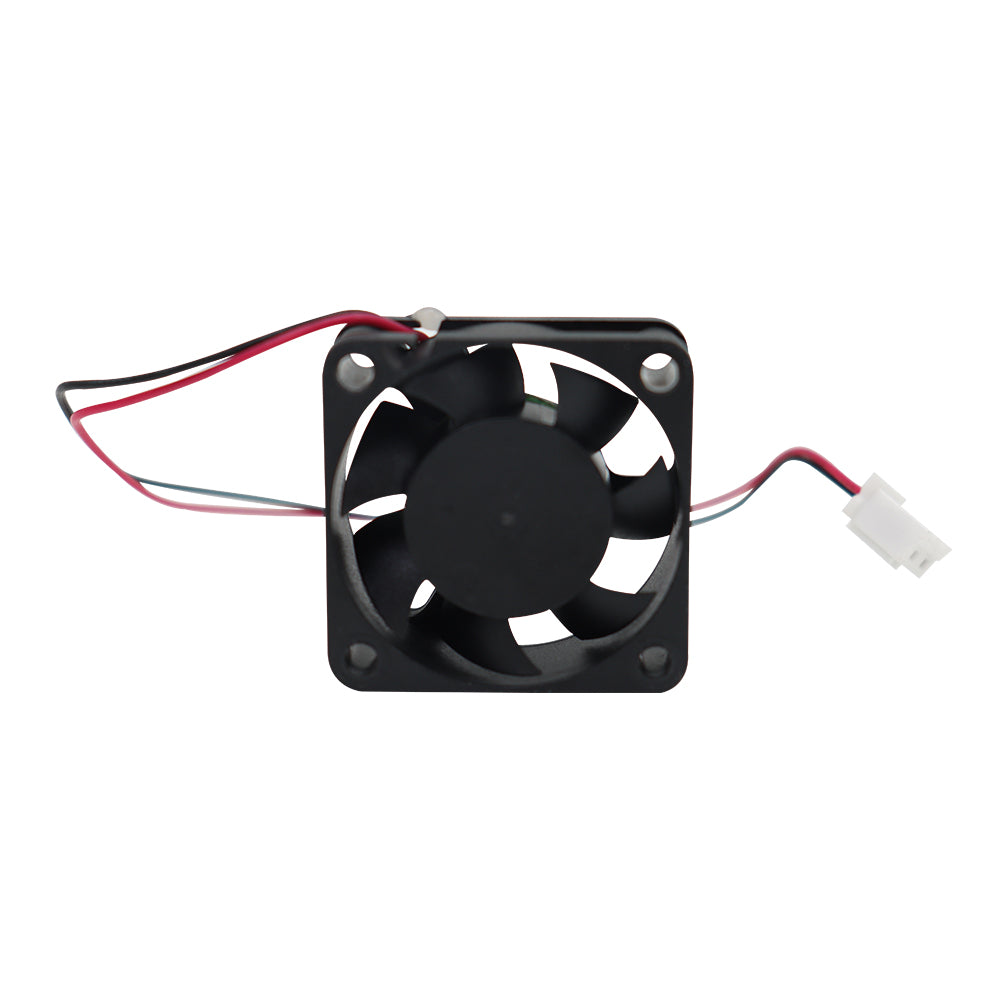
Cooling fans keep the print head and other parts at the right temperature, but they can also add to the overall noise. To reduce fan noise, you can replace the stock fans with quieter aftermarket ones that are designed to operate quietly while still cooling effectively. Some printers also allow you to adjust the fan speed through firmware or slicer software. Lowering the speed can reduce noise, but it may affect cooling performance. Another option is to use well-designed fan shrouds or ducts that direct airflow more efficiently, reducing turbulence and noise.
Material choice interacts with this directly. PLA typically runs the part-cooling fan at or near full speed for the whole print, which is why PLA prints are the noisiest; ABS and ASA are usually printed with the part fan low or off, which removes an entire noise source. If you have a choice of material for a job that has to run overnight, that is worth knowing.
Vibrations
Vibrations from the printer's movements can make the noise worse, especially if the printer isn't stable. To minimize vibration noise, make sure to place your printer on a sturdy, level surface. You can also use anti-vibration pads or a special printer base to reduce vibrations further. Regularly check for loose screws, bolts, or other parts that may be causing rattling or vibrating noises, and tighten them as needed. Applying vibration-dampening materials like foam or rubber sheets to the printer's frame or enclosure can also help absorb vibrations and reduce noise.
The principle at work is vibration isolation: a compliant layer between a vibrating machine and a large radiating surface stops the energy transferring into that surface. A concrete paver on top of a foam mat is a crude but genuinely effective version, because it adds mass above the isolator and decouples what is left. The same vibration that makes noise also degrades surface quality on the print, which is why the fix overlaps almost entirely with our guide to stopping ringing and ghosting — a machine that is quiet at speed is usually a machine that prints cleanly at speed.
Mechanical Problems That Can Make Your 3D Printer Noisy
In addition to the common sources of noise we've already talked about, mechanical issues can also make your 3D printer louder. Two main problems are loose parts and worn-out components.
Loose Parts
Over time, the different parts of your 3D printer can come loose because of vibrations and regular use. Loose parts can cause rattling, clicking, or other unwanted noises. To fix this problem, regularly check your printer for any loose screws, bolts, or other fasteners, and tighten them as needed to keep everything secure. Also, check for any loose belts or pulleys, as these can also make noise. Adjust the belt tension as necessary and make sure the pulleys are tightly fastened.
Worn-Out Components
As your 3D printer gets older, some parts may wear out, leading to more noise and possibly affecting print quality. Common parts that can wear out include:
Linear bearings: These bearings allow the print head and build platform to move smoothly. If they get worn, they can cause grinding or rattling noises. Check your linear bearings regularly and replace them if needed.
Belts: Over time, belts can stretch, fray, or develop worn-out teeth, causing noise and reducing print quality. Look for signs of wear on your belts and replace them when necessary.
Fans: Cooling fans can get dusty and dirty, making them noisy or even causing them to stop working. Clean your fans regularly and replace them if they get too noisy or stop working altogether. A fan that has developed a rattle or a wobble has usually lost its bearing and will not recover with cleaning — replacing it is the fix.
Calibration and Maintenance Tips to Reduce 3D Printer Noise
Regularly calibrating and maintaining your 3D printer can help prevent and reduce noise problems. Here are some important tips to remember:
Lubricate moving parts: Properly lubricating linear rods, lead screws, and other moving parts can help reduce friction and noise. Use a high-quality, lightweight lubricant made specifically for 3D printers, and apply it sparingly to avoid attracting dust and dirt.
Perform routine maintenance: Create a regular maintenance schedule to keep your printer in great shape. This should include tasks like cleaning the print bed, nozzle, and extruder gears, as well as checking for any loose or worn-out parts. Maintenance intervals and what they cost are broken down in our guide to 3D printer maintenance costs.
Calibrate your printer regularly: Proper calibration ensures that your printer is working at its best, reducing the chance of issues that can cause noise. Regularly check and adjust your printer's belt tension, bed leveling, and other calibration settings as described in your printer's manual.
By following these simple tips, you can help keep your 3D printer running smoothly and quietly. Taking the time to lubricate moving parts, perform routine maintenance, and calibrate your printer regularly can go a long way in preventing and reducing noise issues.
Upgrades and Changes to Make Your 3D Printer Quieter
If you've tried fixing the common noise sources and maintaining your printer but it's still too loud, consider these upgrades to make it quieter:
- Silent Stepper Drivers: Upgrading to silent stepper drivers can greatly reduce the noise from your printer's motors. If your printer is compatible, this can be a good investment for a quieter experience.
- Enclosures: Putting your printer in a special enclosure can help control temperature and significantly reduce noise. You can buy an enclosure or make your own using materials like acrylic or an old cabinet.
- Anti-Vibration Pads and Dampers: Placing anti-vibration pads under your printer's feet and installing stepper motor dampers between the motors and frame can help absorb vibrations and minimize noise. These simple, affordable changes can make a big difference in overall noise levels.
Which upgrade should you do first?
| Upgrade | What it addresses | What it will not fix | Cost / effort |
|---|---|---|---|
| Isolation pad or paving slab under the machine | Low-frequency rumble transmitted into furniture and floors | Airborne fan and motor noise | Lowest — do this first |
| Tighten everything, clean and lubricate | Rattles, buzzes, grinding | Inherent motor and fan noise | Free, an hour of your time |
| Better fans and duct cleaning | Broadband rush, whistling, bearing rattle | Stepper whine, vibration | Low |
| Stepper motor dampers | Motor vibration entering the frame | Electrical whine from the driver itself; can slightly reduce positional rigidity | Low |
| Silent stepper drivers | The tonal whine itself, at source | Fan noise, mechanical rattles | Moderate; already standard on current machines |
| Full enclosure | All airborne noise, plus warping on ABS and ASA | Structure-borne vibration — an enclosure sitting on the same desk still transmits it | Highest, but doubles as a print-quality upgrade |
The enclosure row is the one worth thinking hardest about, because it is the only item on the list that pays for itself twice. An enclosed chamber stabilises temperature for engineering materials as well as containing sound — the reasoning is set out in our comparison of open versus enclosed 3D printers and the breakdown of why you would use an enclosure at all. Machines that ship enclosed, such as the QIDI Plus 5 with its 65 °C independently heated chamber or the compact QIDI Q2, get this benefit as standard rather than as a modification.

When to Seek Professional Help
Although you can fix many noise problems using the solutions we've talked about, there may be times when you need professional help. If you experience any of the following, it might be time to seek assistance from a qualified technician or the manufacturer's support team:
- Ongoing noise issues that you can't resolve using standard troubleshooting and maintenance procedures.
- Strange noises that come with a decrease in print quality or printer performance.
- Damage to printer parts that need repair or replacement beyond what you can do yourself.
When looking for professional help, make sure to choose a reputable service provider or contact the manufacturer directly for guidance. They can help figure out what's causing the problem and provide specific solutions to get your 3D printer running quietly and efficiently again.
Frequently Asked Questions
Are 3D printers noisy?
They make continuous noise for as long as they run, which is the real issue — a print can last twelve hours. The sound itself is modest, well under the levels that occupational standards treat as hazardous, but it is tonal and repetitive, and that is what makes it intrusive in a bedroom or a shared workspace.
Is a 3D printer loud enough to hear through a wall?
Usually not through the air, but often through the structure. The low-frequency vibration a printer puts into a desk or a floor travels far better than the airborne whine does, which is why people in the room below hear a printer they cannot hear from the next room. Isolating the machine from its surface fixes this far more effectively than any soundproofing.
Do 3D printers make noise all the time while printing?
Effectively yes. The cooling fans run continuously once the hotend is hot, and the motors run whenever an axis moves, which is almost always. The quietest phase is a long, slow infill pass; the loudest is a small, detailed layer with constant direction changes.
How can I make my 3D printer quieter tonight, with no parts?
Three things, in order. Move it off any hollow surface onto something heavy, ideally with a foam or rubber layer underneath. Do a full tightening pass on every accessible fastener. Then lower acceleration and jerk in the slicer profile — that reduces both the impulse noise of direction changes and the vibration fed into the frame, at the cost of some print time.
Do stepper motor dampers hurt print quality?
Slightly, in principle: a damper introduces a compliant element between the motor and the frame, which is exactly what absorbs the vibration, and that compliance can marginally reduce positional stiffness. On a slower machine the trade is usually worth it. On a fast CoreXY machine relying on rigidity to hold surface quality at speed, it is a poorer bargain than fixing the vibration path to the desk.
Does an enclosure make a printer quieter?
For airborne noise, yes — a sealed box with some soft lining attenuates the higher-frequency whine and fan rush noticeably. For low-frequency vibration, much less, because that energy travels through the feet into the furniture rather than through the air. An enclosure and an isolation pad address different halves of the problem.
Should I wear hearing protection around a 3D printer?
Not for a desktop FDM machine at normal working distances — the levels involved are far below the thresholds where regulators require hearing conservation. If a printer is loud enough that you find yourself raising your voice next to it, something is wrong mechanically and the noise is a symptom worth diagnosing rather than blocking out.
Say Goodbye to Noisy 3D Printing!
Noise is a common headache for many 3D printer owners, but you can tackle it head-on by understanding where the noise comes from and using the right tricks. There are plenty of ways to create a quieter printing setup, like tweaking stepper motor settings, swapping out cooling fans, nailing your calibration, and keeping your printer in tip-top shape. Start with the cheap, high-leverage fixes — isolate the machine from its surface, tighten what is loose, clean the fans — before spending money on parts. By taking on these noise problems, you'll create a more enjoyable experience for yourself and everyone around you, plus help your 3D printer run like a dream for years to come.
Read More
- Is a 3D Printer Loud? Putting the Number in Context
- How 3D Printers Generate Noise
- Noise Sources at a Glance
- Main Sources of Noise in 3D Printers and How to Fix Them
- Stepper Motors
- Cooling Fans
- Vibrations
- Mechanical Problems That Can Make Your 3D Printer Noisy
- Loose Parts
- Worn-Out Components
- Calibration and Maintenance Tips to Reduce 3D Printer Noise
- Upgrades and Changes to Make Your 3D Printer Quieter
- Which upgrade should you do first?
- When to Seek Professional Help
- Frequently Asked Questions
- Are 3D printers noisy?
- Is a 3D printer loud enough to hear through a wall?
- Do 3D printers make noise all the time while printing?
- How can I make my 3D printer quieter tonight, with no parts?
- Do stepper motor dampers hurt print quality?
- Does an enclosure make a printer quieter?
- Should I wear hearing protection around a 3D printer?
- Say Goodbye to Noisy 3D Printing!
- Read More
Recommended products